The Forum has rules, which can be found here, but our Forum doesn’t have user instructions gathered in one place, so I thought I would start putting them together bit by bit.
I don’t have the time or capacity to make any super fancy guides, but I thought I’d gather instructions here to make using the Forum more pleasant for the community. These guides will save the writer’s time and the readers’ nerves; additionally, threads will become clearer and the number of flags will decrease. When necessary, we will periodically remind people of these instructions, and if someone asks how to do something, you can directly link to or suggest these guides.
The purpose of this opening post is to compile a list where all the instructions can be found. This project is just in its early stages, so we will be making it smarter and neater all the time. Additionally, we will create content whenever time permits and move some old instructions to this thread. I’ll promote this guide thread more once there are more instructions and they are better polished. 
List of Instructions
- Replying to a post that is in another thread + quoting another post
- Editing a post
- Changing your password
- Changing your username
- Changing profile information
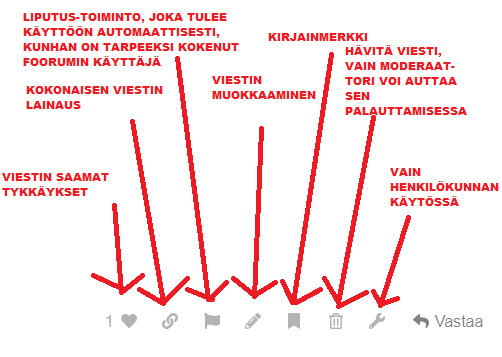
- Replying to someone’s post and using the functions at the bottom of a post
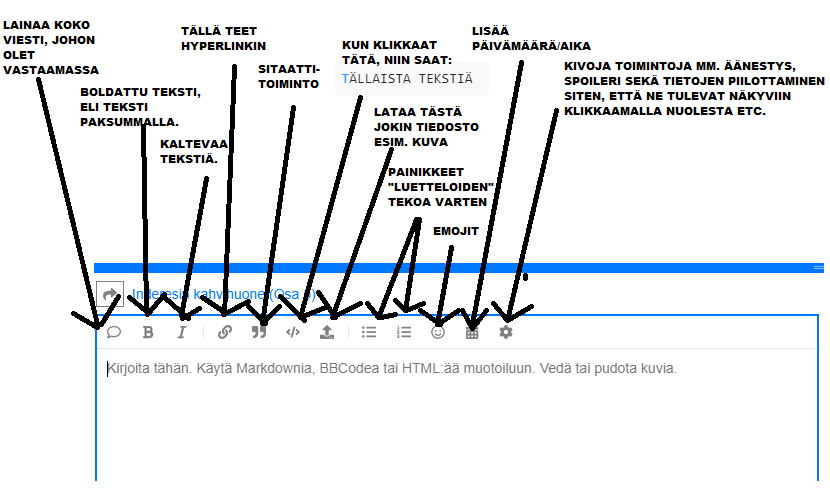
- Functions used when writing a post / icons in the reply box
- Deleting an Inderes account and canceling a Premium subscription
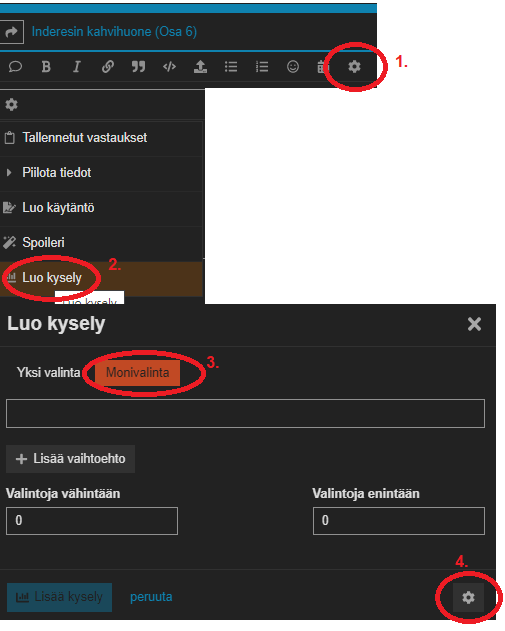
- Creating a poll
(instructions posted on Aug 6)
16 Likes
Replying to a message in another thread + quoting another message
Now I’ll tell you how to reply to a message in another thread. This skill is needed, for example, when someone wants to ask a forum member who wrote in the Bought/Sold thread why they bought that particular company.
I want to reply to Verneri’s message in the Stock Market Direction thread, but my reply doesn’t fictitiously fit there, so I want to reply here in the Coffee Room thread.
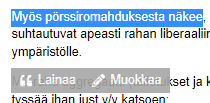
- First, I highlight the part I want to quote from Verneri’s message:
Once I have highlighted the section, I click the “Quote” button. Then the quoted part from Verneri appears here in the “reply” window. Like this:
Oh, you can, can you? 
-
Then I just move to the Coffee Room, and this “reply” window with its quotes moves along.
-
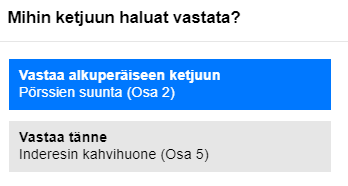
When sending your message, you might encounter this – then choose the correct option:
Here’s a convenient way to copy an entire message:
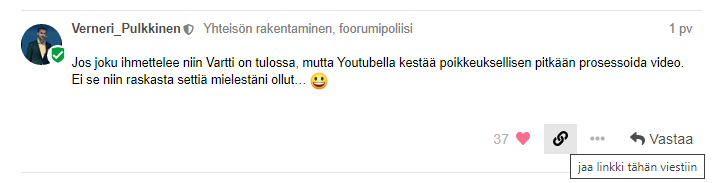
- Click the thread icon in the bottom right corner of the message.
-
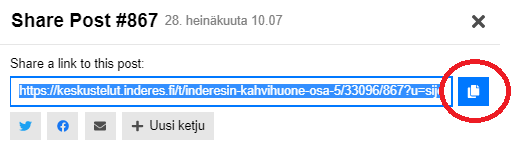
Click the button that is circled.
-
Then you can transfer it to this “reply box” by pressing ctrl+v.
11 Likes
Editing a post afterwards and tagging another user in the post
Editing a post afterwards:
This skill is needed when you want to edit a post afterwards. It’s not always worth creating a new post if there’s a deficiency or error in the previous one. Especially if no one has had time to post a new message after yours, it’s usually best to just edit the message afterwards.
Many people are annoyed when the same user has posted many very short messages in a row, so the aforementioned messages are almost always flagged. However, there is a “post editing” function that, when used, makes everyone happy:
Just click on the pen icon in the bottom right corner of the post and you can start editing the post.
Tagging another user in a post
All you need is the @-sign and the username. For example:
@Johannes_Sippola take an example from the username @Sijoittaja-alokas.
5 Likes
Changing your password
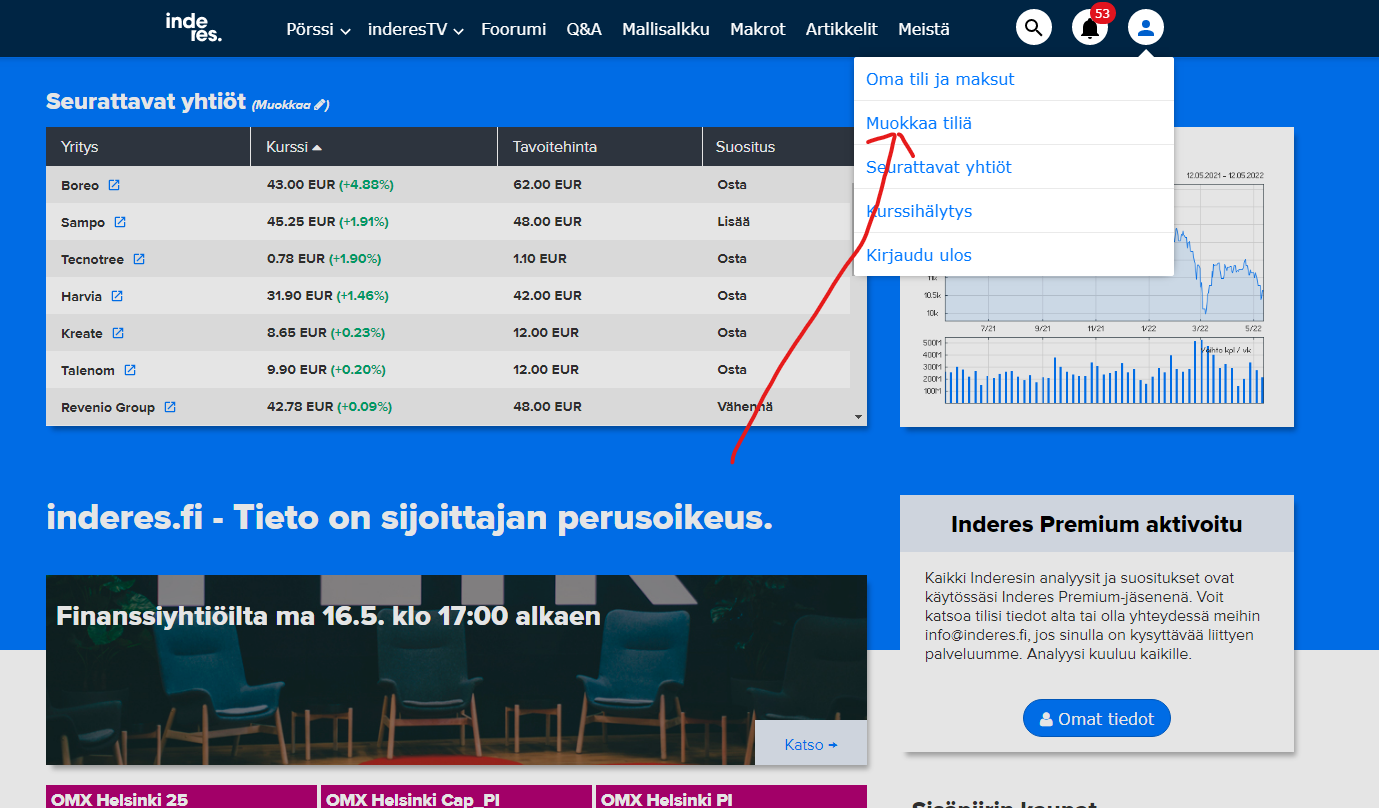
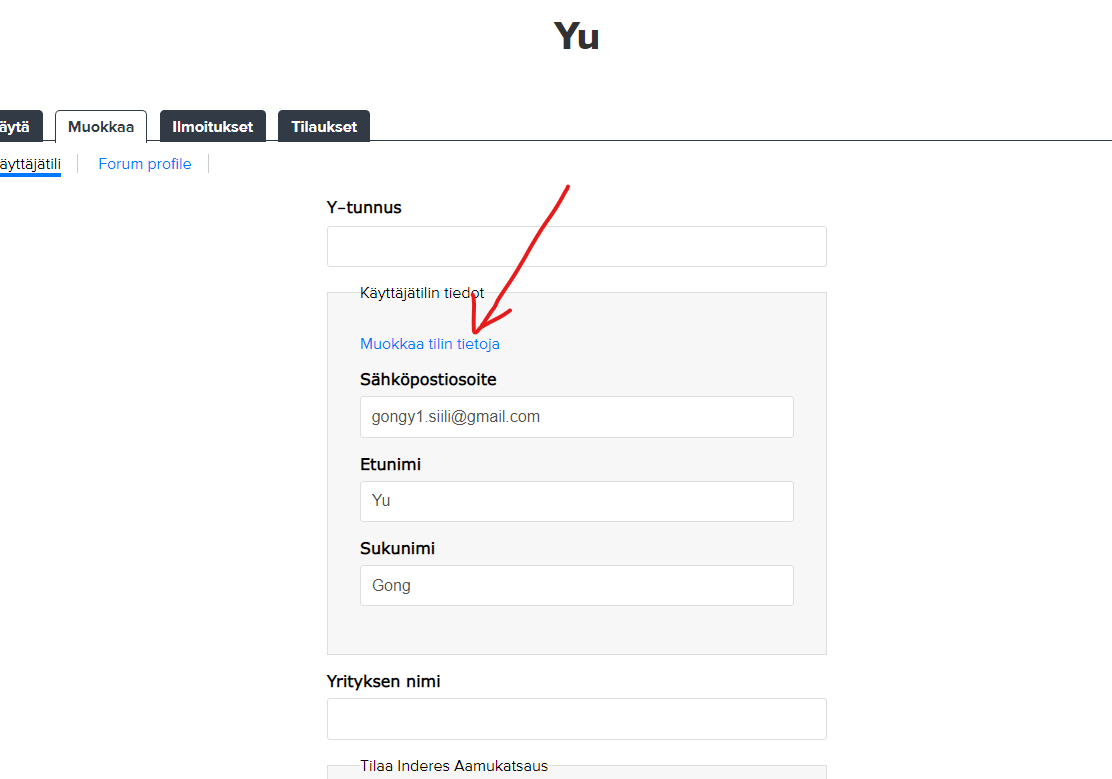
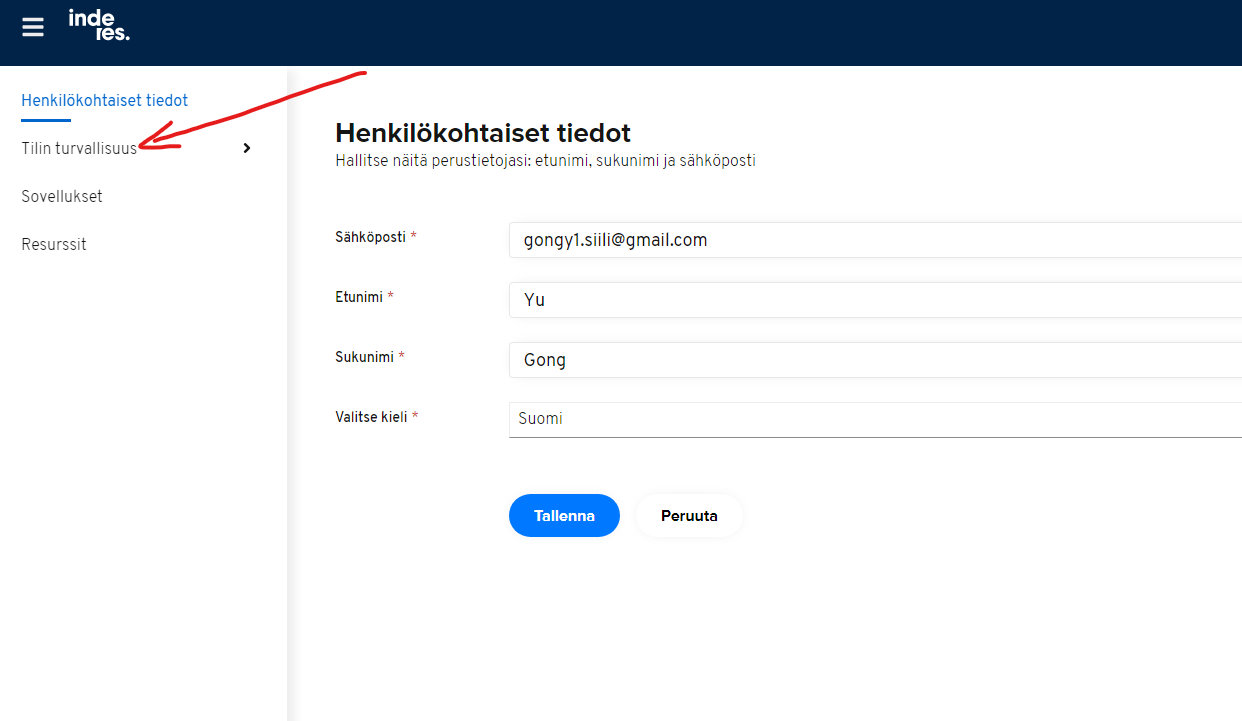
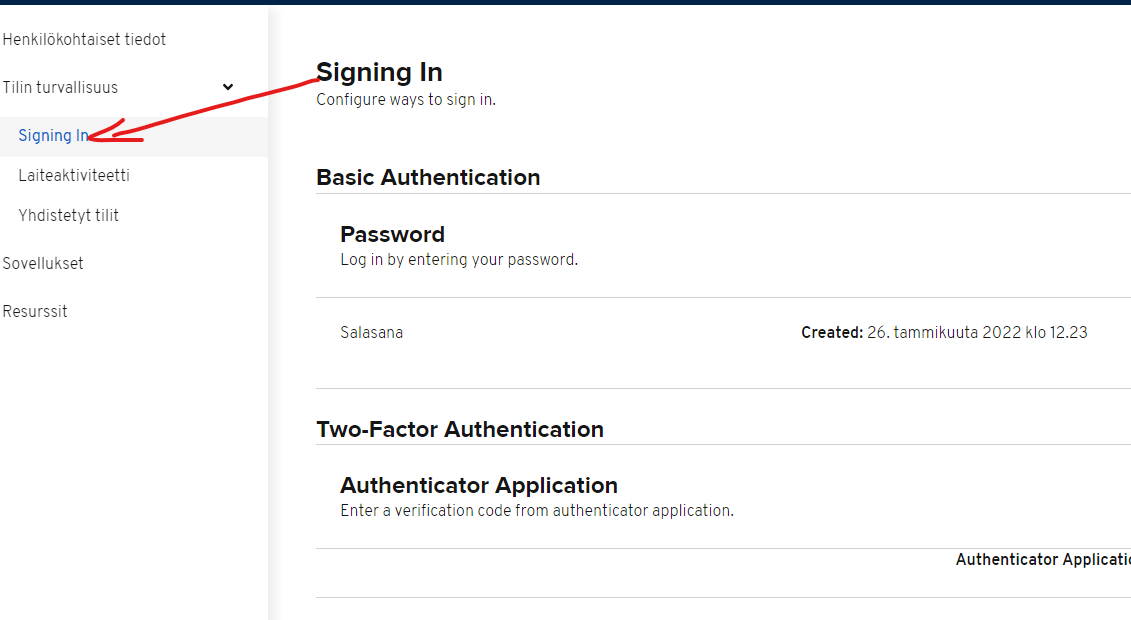
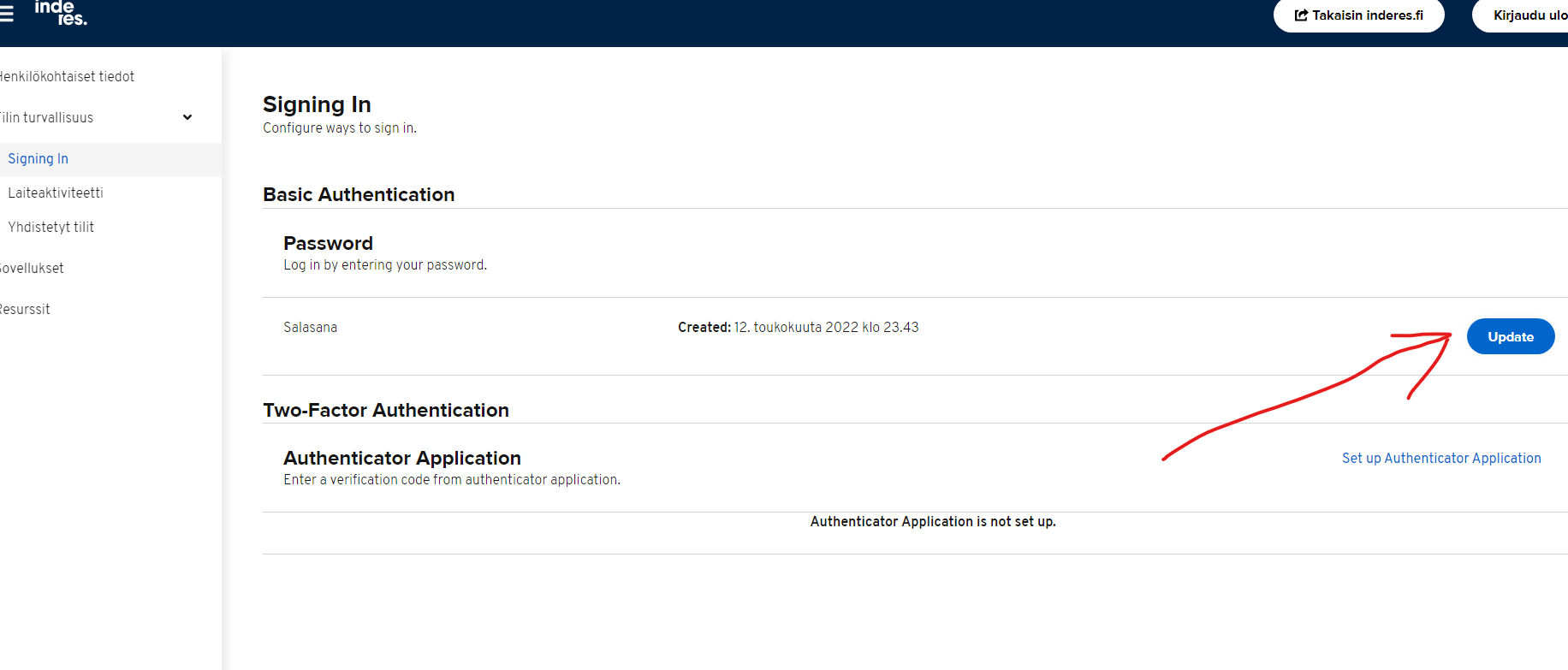
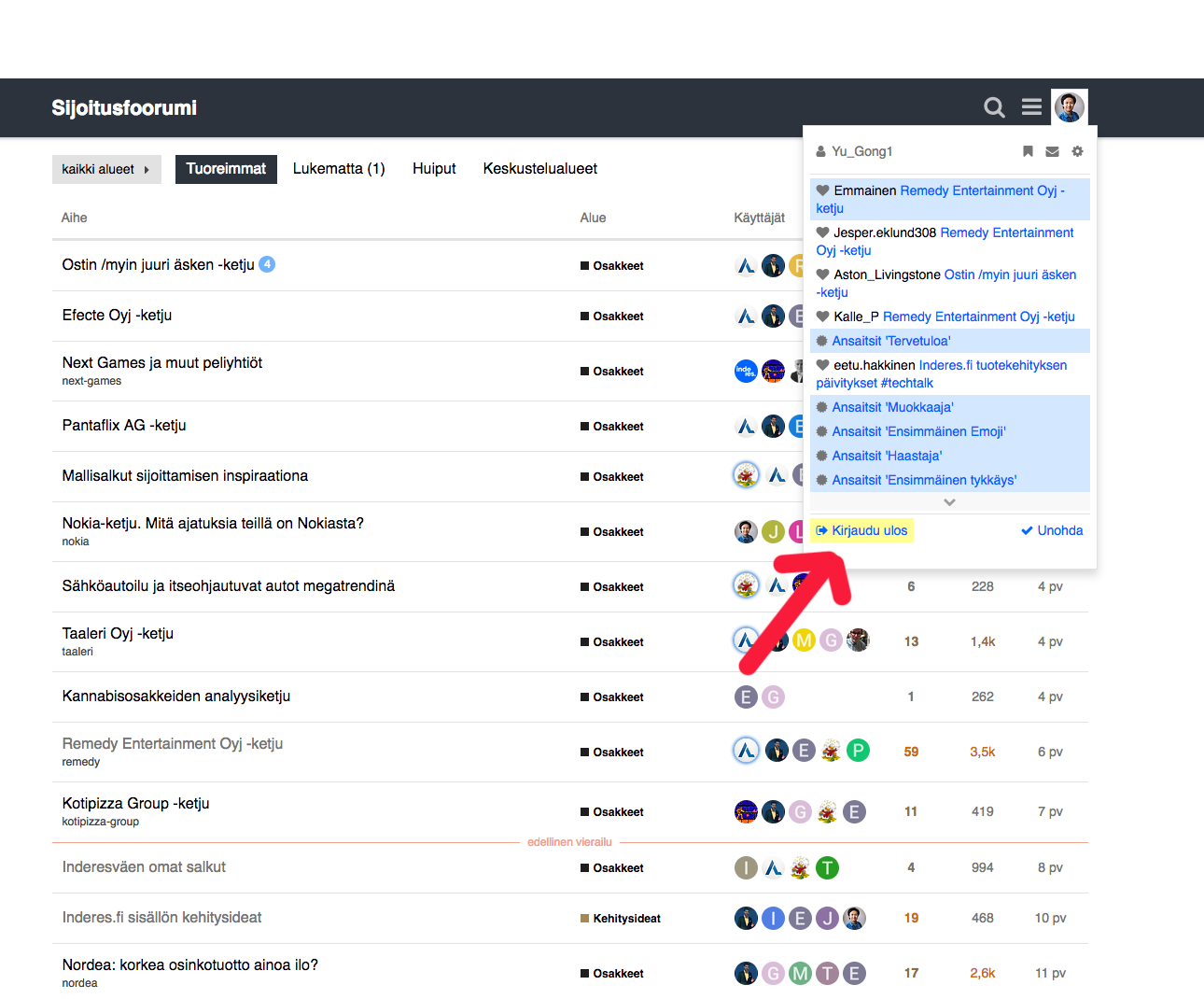
Here are excellent instructions from @Yu_Gong for changing your password:
Customer service has received some feedback and inquiries on how to change your password in the inderes.fi service now that a new login method is in use.
Here are the instructions. Feel free to ask any questions you may have!
3 Likes
Changing Your Username
These instructions were also made by @Yu_Gong!
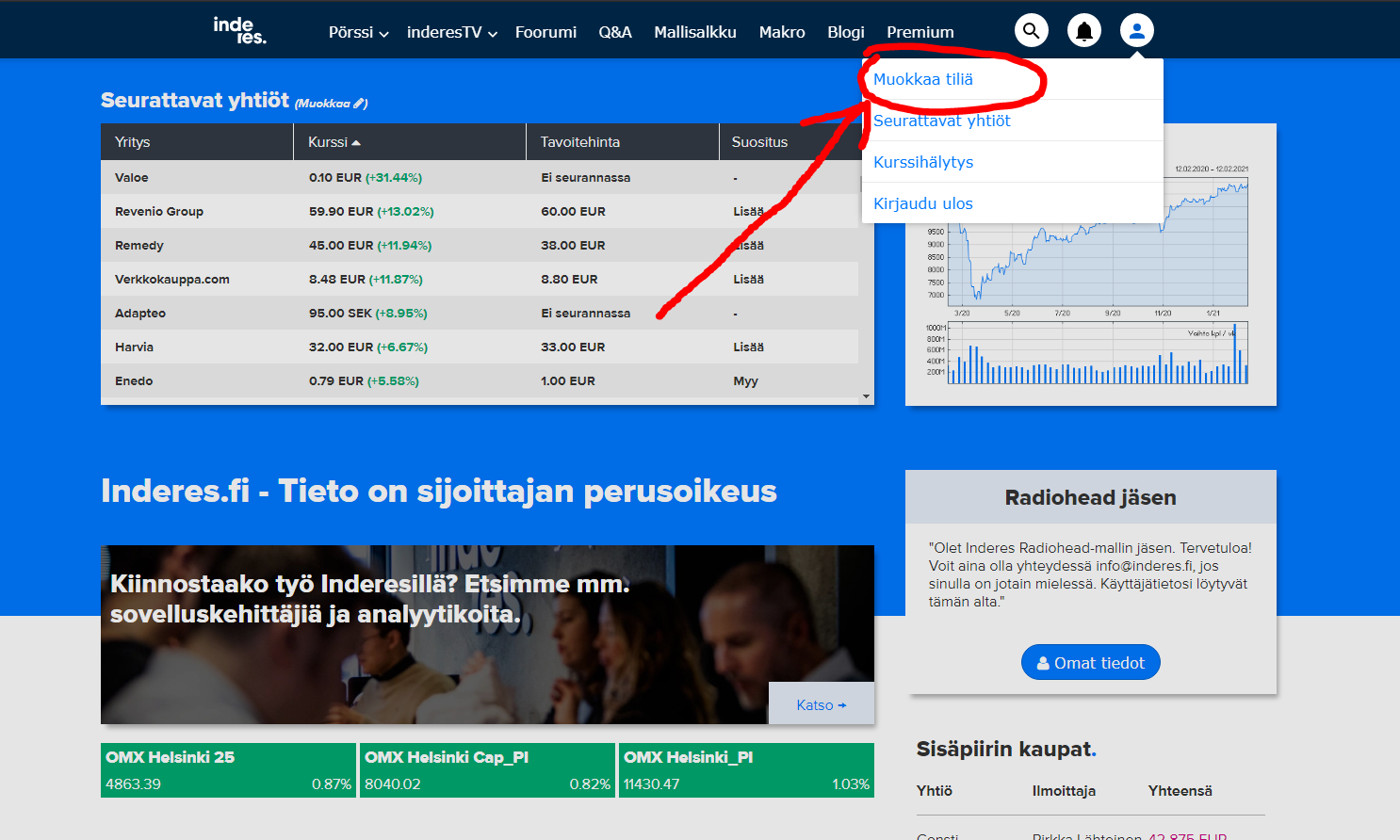
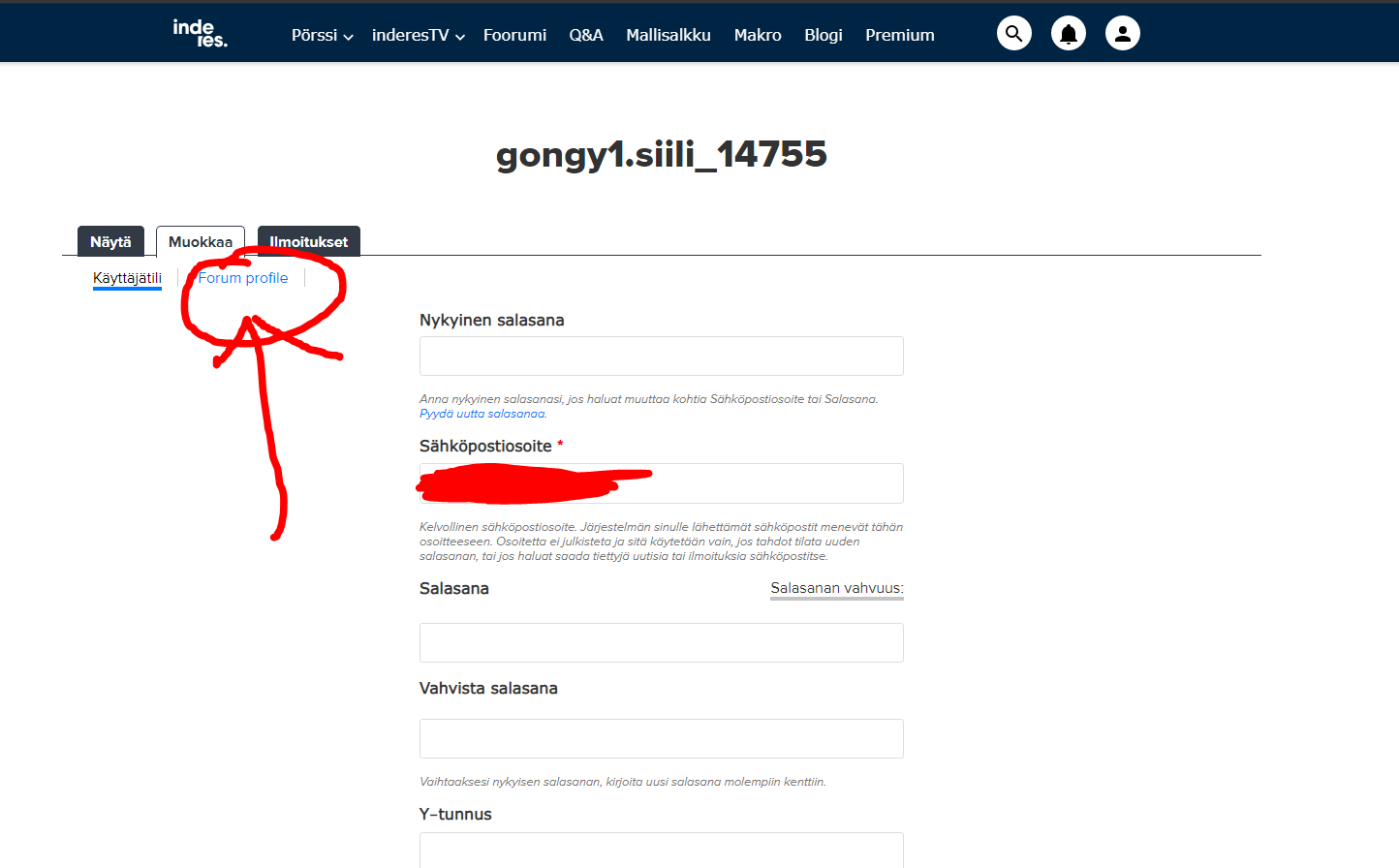
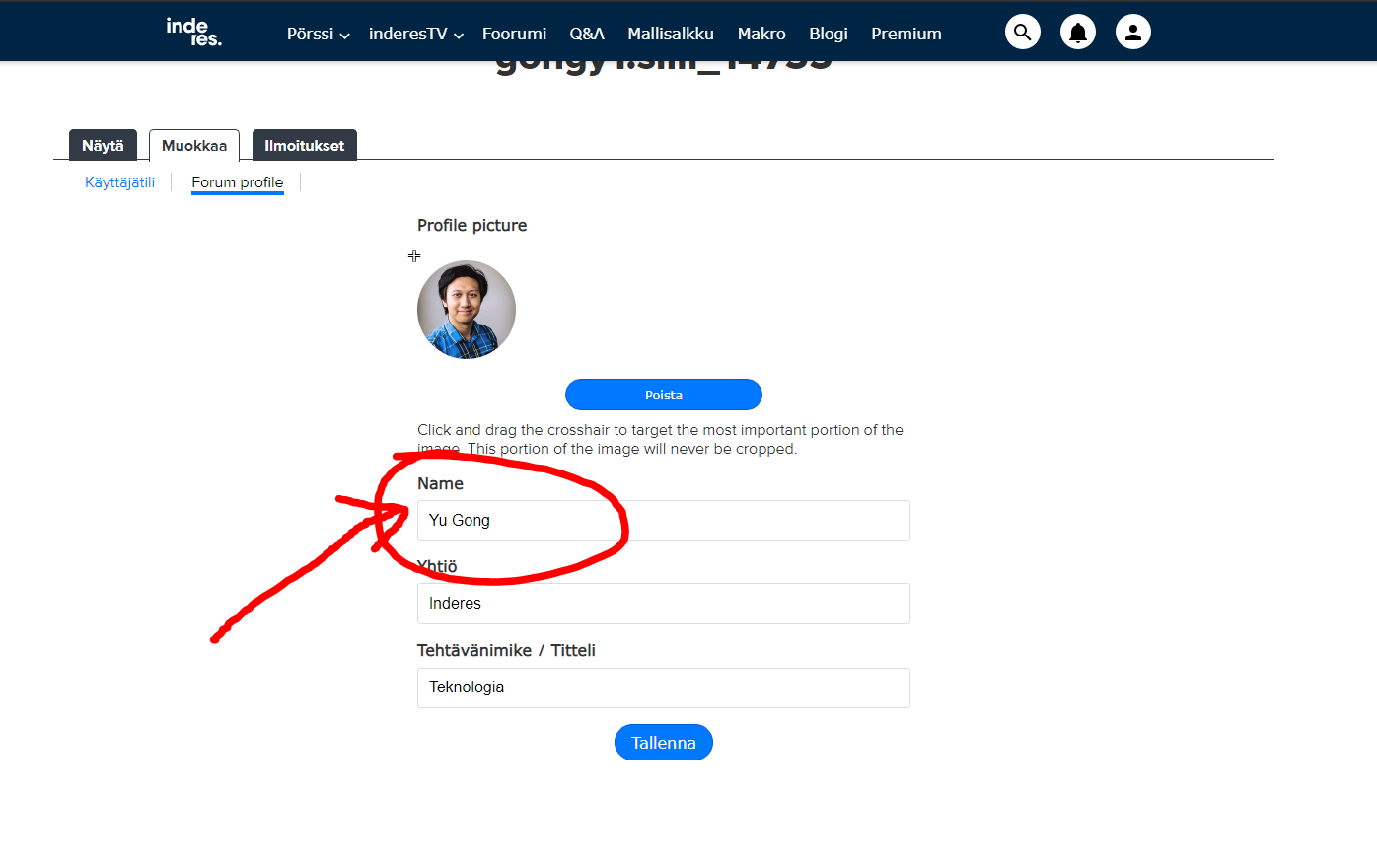
Here are the instructions on how to edit your name in the Investment Forum.
Step 1: Go to https://www.inderes.fi/ and after logging in, click “My data” in the top right corner.
Step 2: Click the “Forum Profile” tab
Step 4: Edit the name.
Step 5: The name will sync to the forum when you log out at: https://keskustelut.inderes.fi/ and log back in.
4 Likes
Changing Profile Information
-
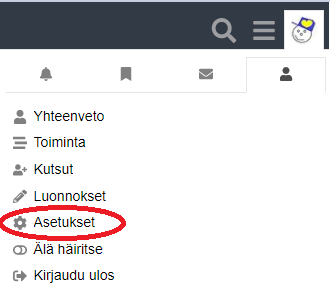
Click on your profile picture, then on the avatar image below it, and then click “Settings”.
-
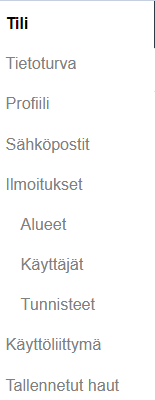
After which, the following menu will appear:
Under Account, you can change your profile picture and email address, among other things.
Under Security, you can see which different devices you have logged in from and you can also log out from these different devices.
Under Profile, you can write about yourself, which will be visible on your profile. Through this, you can also change your profile’s background image and save your birthday.
Under Email, you can define what notifications you want to receive in your email.
Under Notifications, you can define what notifications you receive on the Forum.
Under Interface, you can choose whether you want the Forum to have a light or dark theme, text sizes, etc.
Under Saved Searches, you can receive notifications about things you have searched for.
3 Likes
Replying to someone’s message and using the functions at the bottom of the message
To reply to someone’s message:
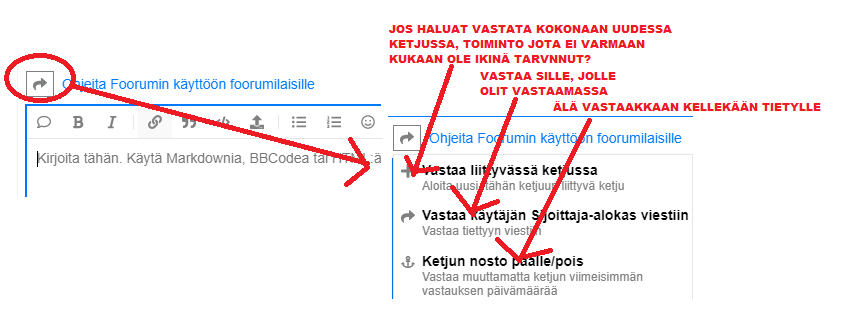
- Click “Reply” at the bottom of the other person’s message.
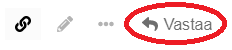
- This feature is very rarely needed. Once you click “Reply”, a reply box will appear, with an arrow in the upper left corner. Clicking it will bring up options:
Using the functions at the bottom right of the message.
- Normally, only these are visible.

- Then click the three dots at the bottom:
5 Likes
Deleting an Inderes Account and Cancelling a Premium Subscription
The text below is mainly quoted from texts written by @Verneri_Pulkkinen.
If you are a Free member of our community, you can delete your Free account by sending an email to info@inderes.fi, or if you have any questions, by calling our “customer service” (i.e. programmers) at +358 10 219 4690.
You can cancel your Premium subscription through the “My Account” section. Please note that, depending on whether the subscription is continuous or, for example, for 12 months at a time, your Premium credentials will remain valid until the end of the subscription period. No new invoice will be issued after that.
If you have purchased a Premium membership through a Nordnet partnership campaign, you will need to call their customer service.
Consider not doing anything hasty.
6 Likes
Creating a Poll
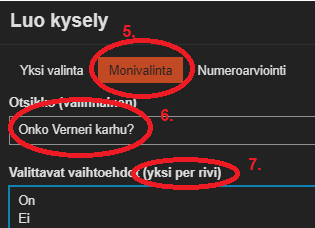
I made some very simple instructions for creating a poll, but these are just basic guidelines for those who are trying to do it for the first time. These are not the most optimal instructions, nor are they all-encompassing.
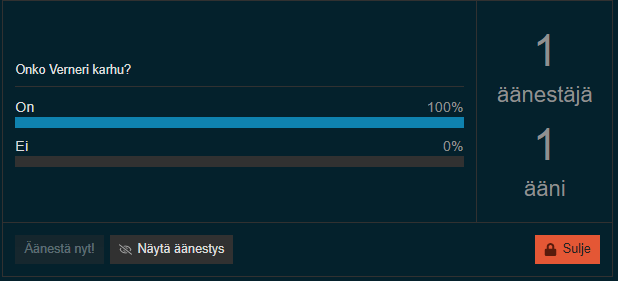
And here is what the end result looks like:
5 Likes